Search
Guru Maps lets you find locations, addresses, and points of interest, and works fully offline within the downloaded vector maps. If the object exists on OpenStreetMap.org, it will be found in Guru Maps.
Online and offline search work together. Matches from online, your downloaded maps, your bookmarks, and your history are combined into one clean list — the same place is never shown twice. When you're offline, only the downloaded maps are searched, and everything else works just the same.
Start a search
To initiate a search in Guru Maps, follow these steps:
- Tap the magnifying glass
 icon located on the main map screen. This will open the search screen.
 - In the search field, either type or paste the keyword or name of the location you want to find. For example, you can enter the name of a city, a specific address, or a point of interest.
- Once you have entered the keyword, tap the Find button on the keyboard. This will trigger the search process.
- Guru Maps will search for matches based on your keyword.
Results are ranked by where you're actually looking: search "cafe" and the ones closest to the center of your map float to the top, instead of a café two cities away. Titles and subtitles are tidy too, so you won't see the city name repeated on both lines.
Search suggestions
The quick search mechanism is designed to make it faster to complete your searches. Just begin typing, and you’ll see suggested results appear:
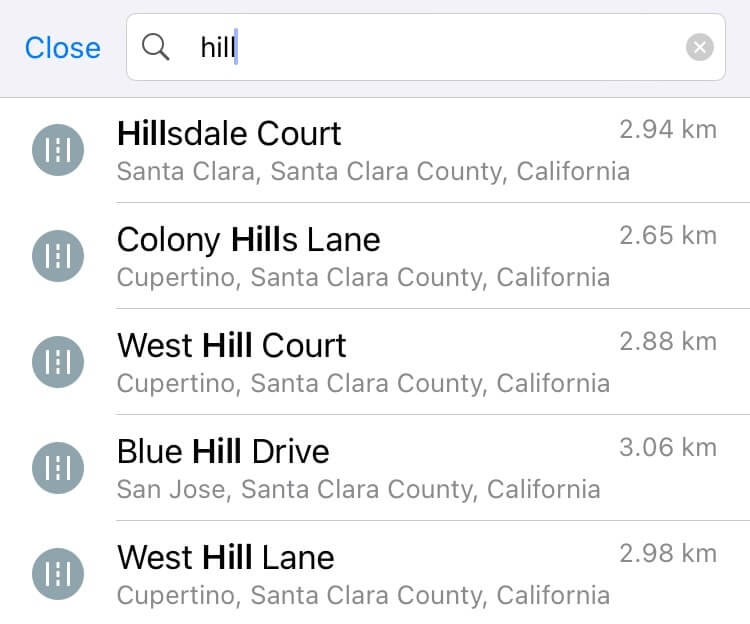
If none of the quick suggestions match your query, tap Find on the keyboard to get the full list of results.
View search results
Here's how the search results are presented in Guru Maps:
- Map Display: The search results are displayed as markers on the map itself. Each marker represents a location or point of interest that matches your query. The map preview is interactive, and the search results update as you move and zoom on the map.
- List View: In addition to the map display, Guru Maps also provides a list view of the results. This list presents the search results in a structured format, usually showing the name and address of each location. You can scroll through the list to review the results systematically.
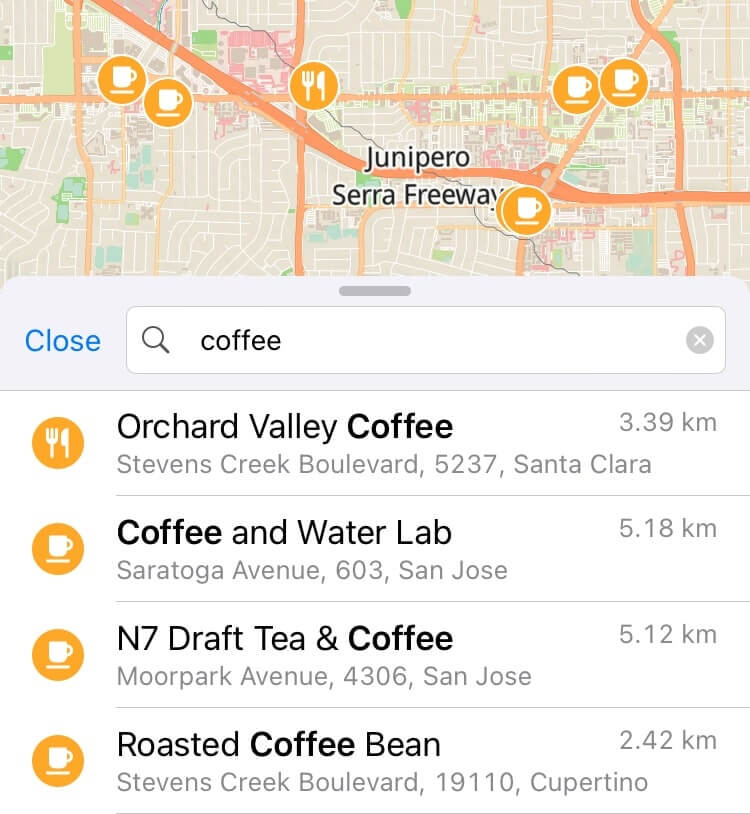
Tap any result on the map or in the list to open the detailed view below. Tap it again on the map to return to the full list of search results.
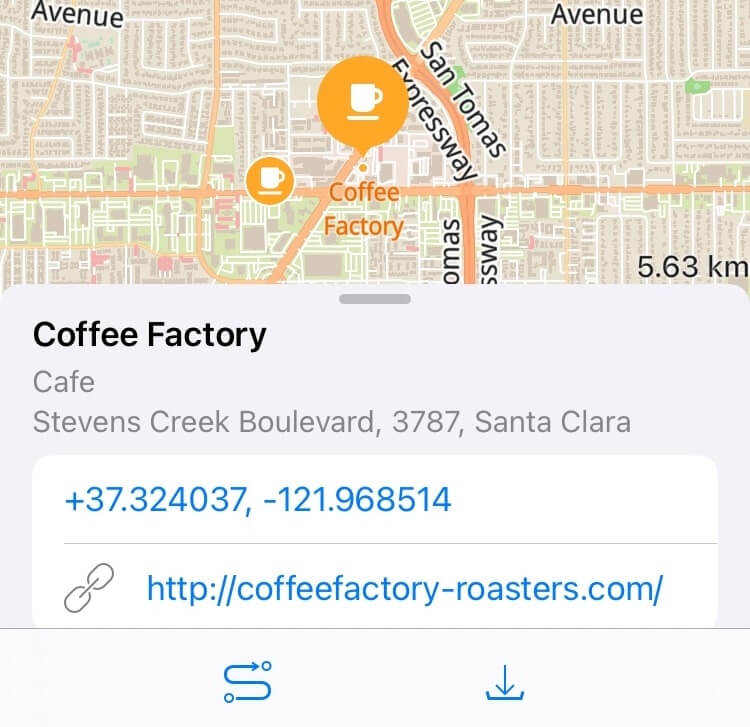
To navigate to the selected location, tap the  icon in the bottom menu. Guru Maps will provide the route and turn-by-turn directions to reach your destination.
To save a selected location from the search results to your map, tap  in the bottom menu. The new marker is saved in the default folder within "My Collections."
Search by name
Searching by name in Guru Maps is a convenient way to find specific locations or points of interest. Simply enter the name in the search bar, and Guru Maps will display relevant results based on the downloaded maps.
Keep in mind that the search is case-insensitive, meaning you don't need to worry about capitalizing specific letters. However, it's important to ensure that you spell the name correctly, as the search will not recognize misspellings.
Search by category
Searching by category in Guru Maps allows you to quickly find specific types of locations or points of interest. Instead of typing a specific name, tap the category that best matches what you're looking for:
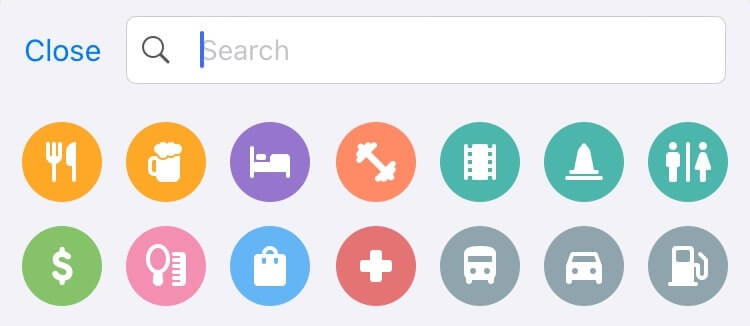
For example, if you're looking for accommodation, tap the "accommodation" category icon. The search results will be displayed, showing relevant locations within the chosen category. At the bottom of the search results you will see options to narrow them further based on specific subcategories. Within the accommodation category, you may have options such as hotels, motels, hostels, or camping:
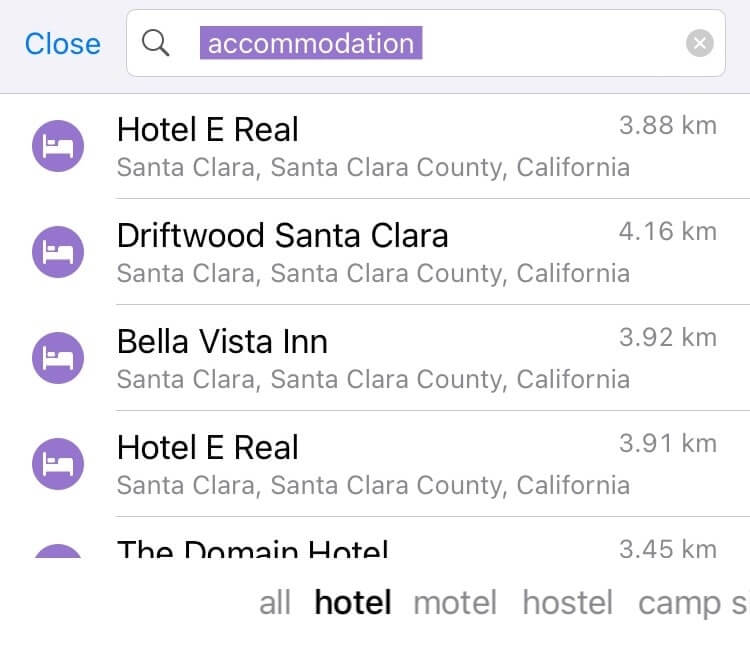
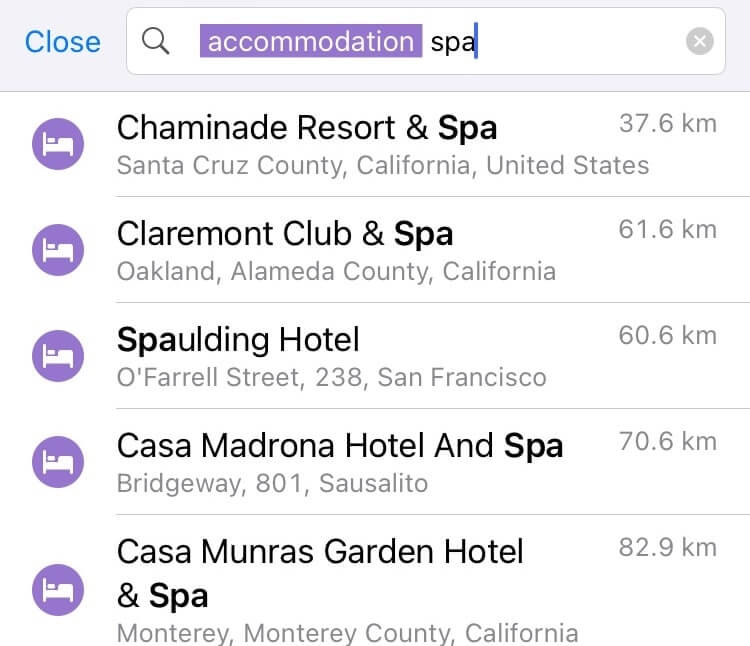
To refine your search further, tap the search field. This allows you to edit your search criteria and type additional keywords or adjust the category selection:
Search by address
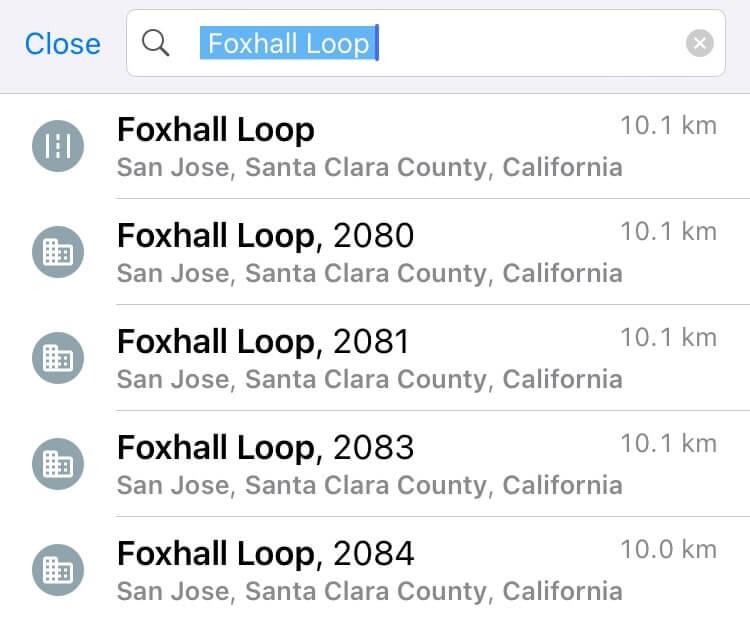
To search by address in Guru Maps, you have multiple options to find the desired location. Start typing the street name in the search bar. As you type, Guru Maps automatically offers matching entries or suggestions based on the entered text.
Choose the desired street from the suggested options. Guru Maps will display a list of all house numbers available on that street:
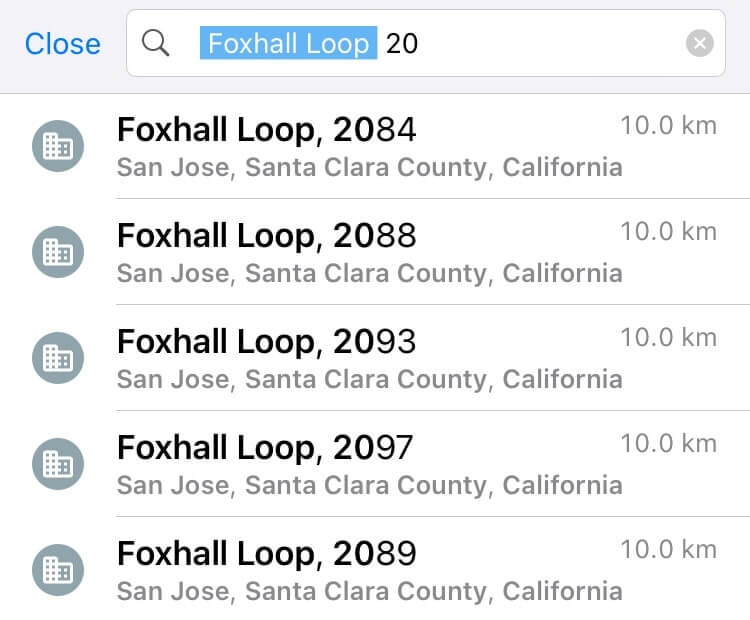
If you know the specific house number, enter it to narrow down the selection further. Type the house number in the search bar, and Guru Maps updates the list with the corresponding addresses on the chosen street:
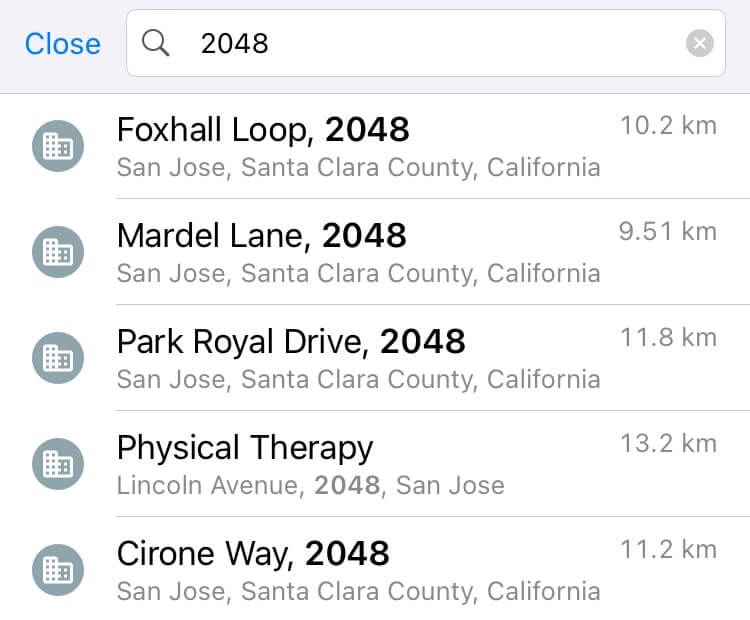
Alternatively, if you know the house number but not the street name, enter the house number in the search bar directly. Guru Maps displays a list of all streets that have matching house numbers:
Search by coordinates
To search for a location by coordinates in Guru Maps, enter the coordinates of the location you want to search for in the search field:
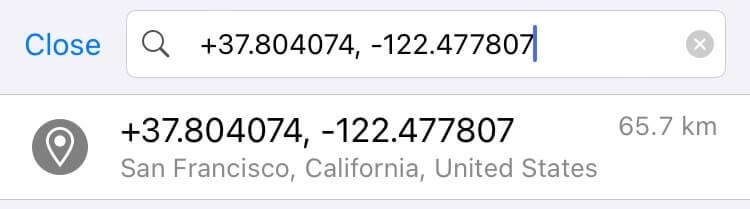
You can input the latitude and longitude coordinates in any of the supported coordinate formats. Guru Maps locates the specified coordinates on the map, and the map display adjusts to show the location you searched for.
To avoid confusion while entering coordinates from the keyboard, you can use spaces instead of the (‘) right single quotation mark, (”) right double quotation mark, or (°) degree sign.