User Profile
Within your personal Guru Maps account details, you have access to information such as your license details and the number of devices connected to your account.
Account creation
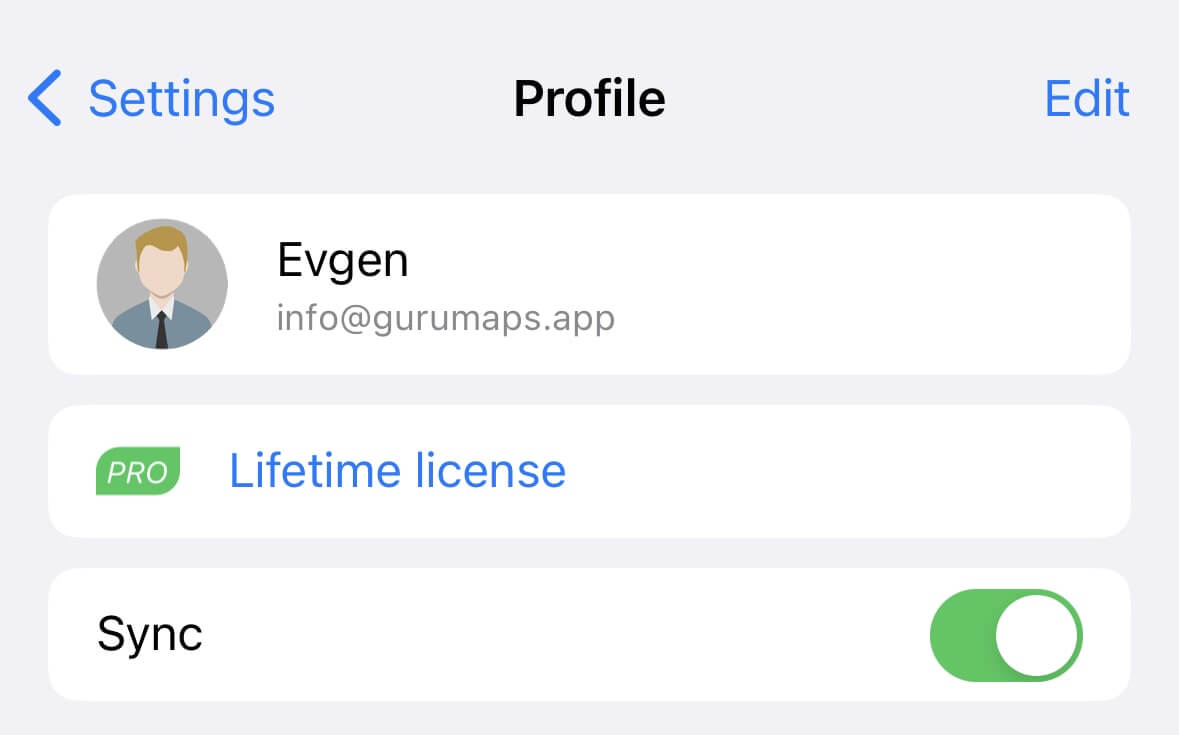
There are two ways to create a Guru Maps account:
- Visit map.guru.
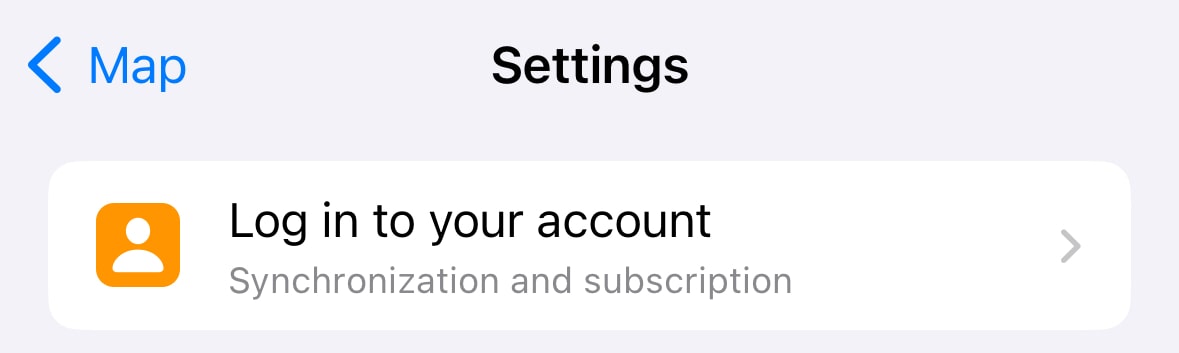
- Create an account directly within the app settings by tapping the first cell in the Settings menu.
When creating a Guru Maps account, you have several sign-up options. In addition to signing up with email and password, you can tap the Apple, Google, and Facebook icons to use those accounts:
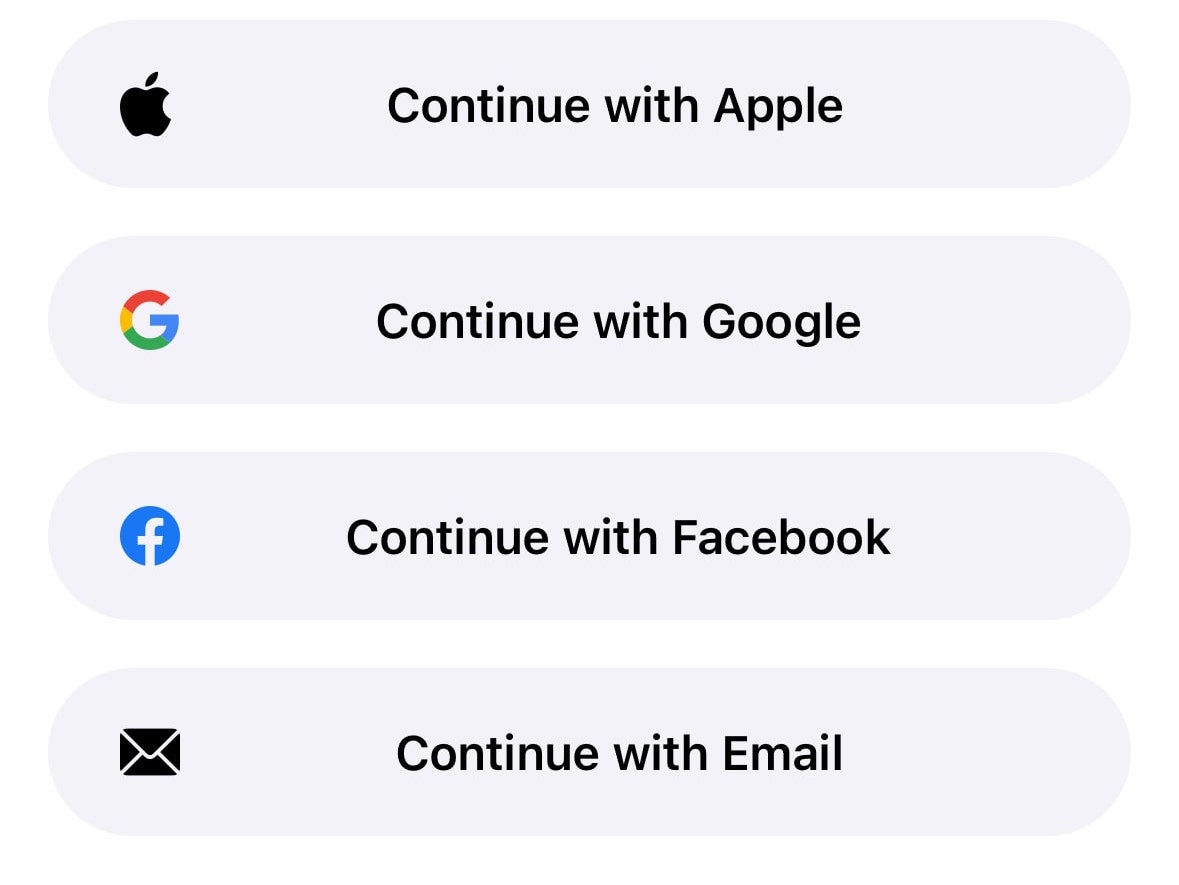
When you choose to create an account in this way, your Guru Maps data is never shared with Apple, Google, or Facebook. Likewise, your login credentials for Apple, Google, or Facebook are never shared with Guru Maps. You can read more about the Apple, Google, and Facebook login services here: Apple, Google, Facebook.
License and gift codes
Guru Maps Pro can be unlocked with a Universal License — a lifetime license tied to your account that activates Pro automatically on iOS, Android, macOS, and Huawei, across up to 7 devices. There's no separate paid app to install.
From your Guru Maps web profile you can buy Pro in two ways:
- Personal license — one Universal License tied to your account. Sign in to the app and Pro activates automatically. If you just want to unlock your own devices, this is all you need.
- Gift codes — buy up to 50 codes in a single purchase and hand them out however you like, without ever touching anyone's account. Each code activates a full Pro license for whoever redeems it. Codes are great for equipping a team, kitting out a fleet of devices, reselling, or simply treating a friend.
To redeem a code, go to map.guru, sign in to your Guru Maps account, find the redemption section, and enter the code. The Universal License activates instantly. Each code is single-use and permanently linked to the account that redeems it, so it can't be moved afterward.
Connected devices
On the user profile screen, you will also find a list of the devices that are currently connected:
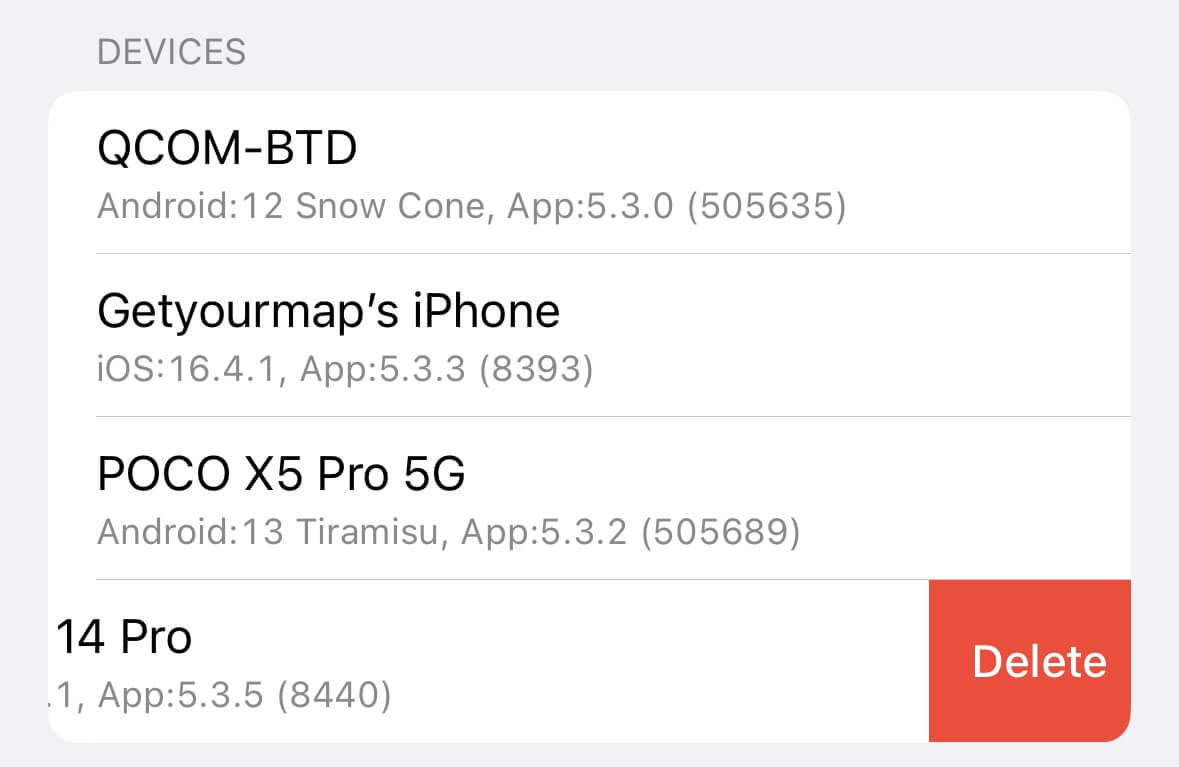
It is possible to connect up to seven user devices to a single account.
To delete an unwanted linked device, swipe across the device name in the list from right to left, then choose the Delete option. When you remove a device from the list, synchronization stops automatically on that device.
Synchronization
The Guru Maps app allows you to sync all of your data so your collections stay visible and accessible across all of your devices using your Guru Maps account.
To keep the map data, like markers, saved routes and recorded GPS tracks synchronized across all your devices:
- Sign in to the Guru Maps app with the same Guru Maps account on all your devices.
- Enable the Sync in the user's profile screen.
- Make sure the Guru Maps app has internet access to synchronize your data.
Editing account information
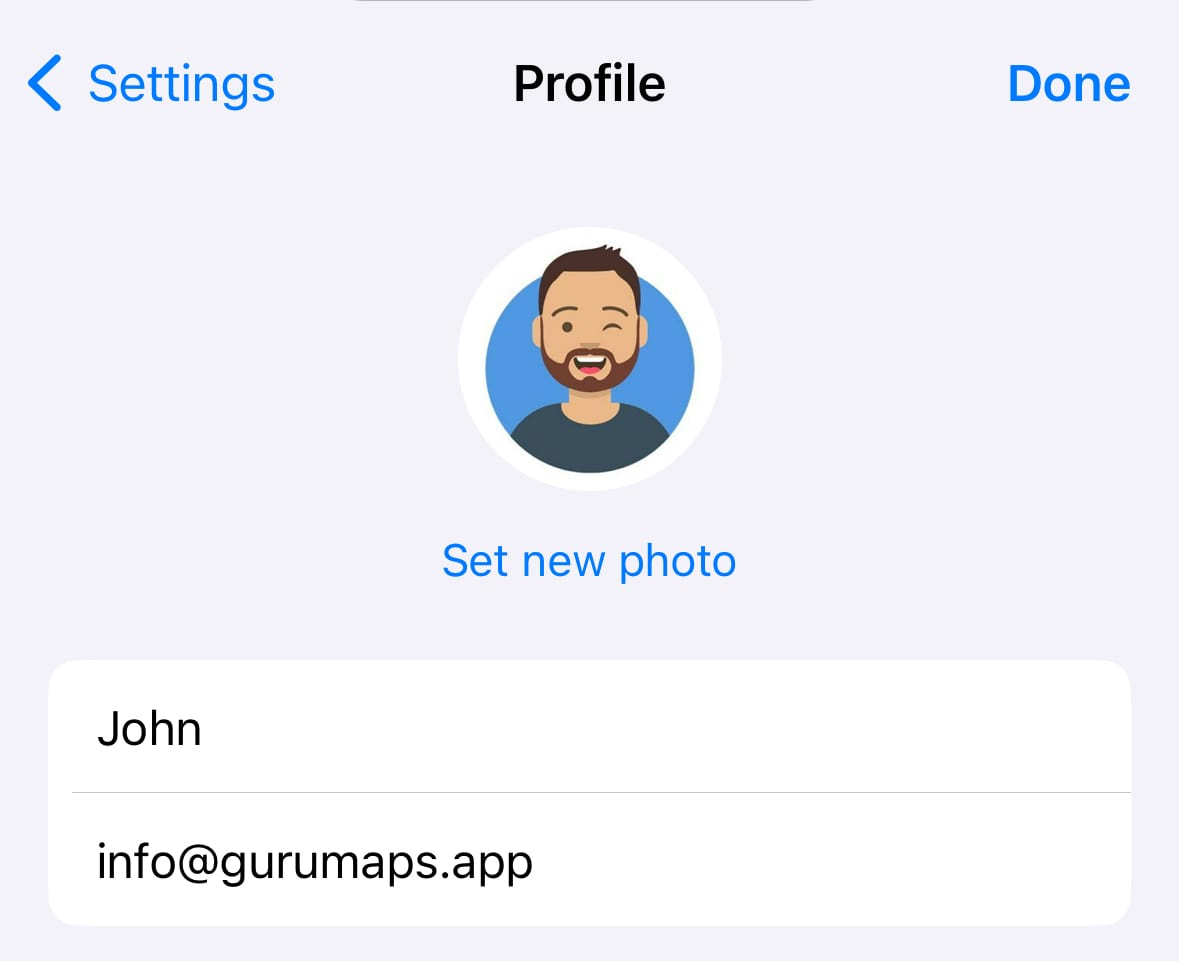
Within the Guru Maps app, you can update your profile information, including your name, the email linked to your account, and upload a new profile photo:
-
Sign in to your Guru Maps account on your device.
-
In the top right corner, tap the Edit button.
Account deletion
When you delete your Guru Maps account, your profile data, saved places, routes, and recorded GPS tracks will be permanently removed.
Follow these steps to delete your account in the Guru Maps app:
-
Sign in to your Guru Maps account on your device.
-
In the top right corner, tap the Edit button.
-
Scroll down to the bottom of the page and tap the red Delete Account button.
-
Confirm that you wish to delete your account.
Once confirmed, your session will be terminated. Your account will be scheduled for deletion and will be permanently deleted after 14 days.
If you log back into your account within the 14-day period, the account deletion will be canceled.